Table of Contents
ToggleThe Xbox 360 might be from a bygone console era, but millions of units are still spinning discs and running classics in 2026. Whether you’re battling persistent system errors, getting ready to sell your console, or just want a fresh start, knowing how to factory reset your Xbox 360 is essential knowledge for any owner. Unlike modern consoles with streamlined menus, the 360’s reset process requires navigating specific settings and understanding what’ll actually get wiped.
This guide walks through every step of the factory reset process, covers what happens to your data, and explains how to avoid common pitfalls that can leave your console in limbo. We’ll also tackle the differences between Xbox 360 models, because resetting an Elite isn’t quite the same as resetting an Arcade unit.
Key Takeaways
- A factory reset for Xbox 360 wipes game saves, profiles, and settings but preserves your Xbox Live account, achievements, and digital licenses on Microsoft’s servers.
- Back up your game saves to cloud storage, USB drives, or memory units before factory resetting to avoid losing hundreds of hours of progress.
- The factory reset process varies slightly across Xbox 360 models—original consoles have removable drives, while S/E models feature integrated storage requiring different navigation steps.
- Factory reset your Xbox 360 to resolve persistent system errors, prepare the console for sale, or remove personal data before lending it to others.
- After resetting, verify no profiles remain on the hard drive and confirm account removal to ensure your personal information and payment data are fully erased.
- If the format operation freezes, wait 15 minutes before power cycling; if the drive isn’t detected after reset, check connector pins for damage or consider hard drive failure.
Why You Might Need to Factory Reset Your Xbox 360
Factory resets aren’t just nuclear options for when things go sideways. They serve several practical purposes for Xbox 360 owners in 2026.
Troubleshooting Performance Issues and System Errors
When your Xbox 360 starts throwing error codes, freezing during dashboard navigation, or refusing to launch games properly, a factory reset can clear out corrupted system files and settings. The console’s operating system can accumulate digital debris over years of use, failed updates, partial installations, and conflicting profile data all contribute to instability.
Common symptoms that warrant a reset include persistent E68, E74, or E79 errors (excluding hardware-related E74 RROD issues), dashboard crashes, or the console getting stuck in endless update loops. If you’ve already tried basic troubleshooting and the problems persist, a reset often resolves software-level issues without requiring technical repairs.
Preparing Your Console for Sale or Trade-In
Selling or trading your Xbox 360 requires more than wiping the dust off. You need to ensure the next owner can’t access your Xbox Live account, payment information, or personal data. A factory reset returns the console to its out-of-box state, removing all traces of your digital footprint.
This is especially critical if you’ve stored credit card information for marketplace purchases or have an active Xbox Live Gold subscription linked to the console. Many buyers expect a clean system, and providing one eliminates potential disputes or security concerns down the line.
Removing Personal Data and Account Information
Even if you’re not selling, you might want to remove your account before lending the console to a friend or family member. Game saves, achievement histories, and messaging data all live on the hard drive. A factory reset ensures nobody can snoop through your gaming history or accidentally make purchases on your account.
This also applies if you’re repurposing the console for a different household member or setting it up in a shared space where multiple people will use it with their own profiles.
What Happens When You Factory Reset Your Xbox 360
Understanding what gets deleted versus what survives a factory reset helps you prepare properly and avoid nasty surprises.
Data and Settings That Will Be Deleted
A factory reset on the Xbox 360 wipes several categories of data from the console’s hard drive. Game saves stored locally will be deleted unless you’ve backed them up to cloud storage (available with Xbox Live Gold) or transferred them to a USB drive or memory unit.
Downloaded games and DLC will be removed from the hard drive, though you can re-download them later since they’re tied to your Xbox Live account. System settings, including video output preferences, network configurations, parental controls, and console customization, all revert to factory defaults.
Xbox Live profiles stored on the hard drive get deleted, but the actual accounts remain active on Microsoft’s servers. You’ll need to re-download your profile after the reset. Apps and media, Netflix, Hulu, and other downloaded applications, will be removed, along with any locally stored music, videos, or photos.
What Remains After a Factory Reset
Physical game discs obviously aren’t affected by a factory reset. You can still play any disc-based games you own. Your Xbox Live account itself remains intact on Microsoft’s servers, including your gamertag, achievements, friends list, and purchase history. According to resources from Pure Xbox, your digital library and account standing persist regardless of console resets.
Digital licenses for purchased content remain tied to your account. Once you re-download your profile and sign back into Xbox Live, you can re-download any previously purchased games or DLC at no additional cost.
The console’s firmware version stays current, a factory reset doesn’t downgrade your system software to the original version from when the console first shipped. Any system updates you’ve installed remain in place.
Essential Preparations Before Resetting Your Console
Skipping preparation steps is how you lose hundreds of hours of game progress or lock yourself out of your account. Take these precautions seriously.
Backing Up Your Game Saves and Profile Data
The Xbox 360 offers two primary backup methods. Cloud storage through Xbox Live Gold automatically syncs game saves for supported titles. Navigate to Settings > System > Storage, select your hard drive, then Games and Apps, and look for the option to enable cloud saves. Not all games support this feature, older titles may require manual backup.
USB storage devices provide an alternative. Use a USB flash drive (formatted to FAT32, maximum 16GB recognized by Xbox 360) to manually copy game saves. Go to Settings > System > Storage, select your hard drive, highlight specific game saves, and press Y to copy them to the connected USB device.
Memory units, those old 256MB or 512MB cards that plugged into controller slots, still work for backing up saves and profiles if you have one lying around. They’re slower than USB drives but remain compatible with all Xbox 360 models.
Removing Your Xbox Live Account Safely
Before resetting, you should remove your Xbox Live account from the console rather than just deleting it with the reset. Navigate to Settings > System > Storage, select your hard drive, then Profiles. Highlight your profile, press Y for options, and select Delete Profile Only (not Delete Profile and Items).
This removes the local copy of your profile while preserving all your cloud data, achievements, and purchase history on Microsoft’s servers. You’ll be able to re-download the profile after the reset by signing into Xbox Live.
If you’re selling the console, verify the account removal by checking the storage device again to ensure no profiles remain listed.
Documenting Your Settings and Preferences
Write down your network settings if you use a static IP configuration or custom DNS servers. Screenshot or note your video output preferences, especially if you’re using component cables with specific resolution settings.
Record any parental control PINs or family settings passwords. While these will be wiped, you might want to reapply the same restrictions after the reset. Document any specific controller configurations or accessibility settings you’ve customized over the years.
Step-by-Step: How to Factory Reset Your Xbox 360
Here’s the actual reset process, broken down into manageable chunks. This works for most Xbox 360 models with hard drives attached.
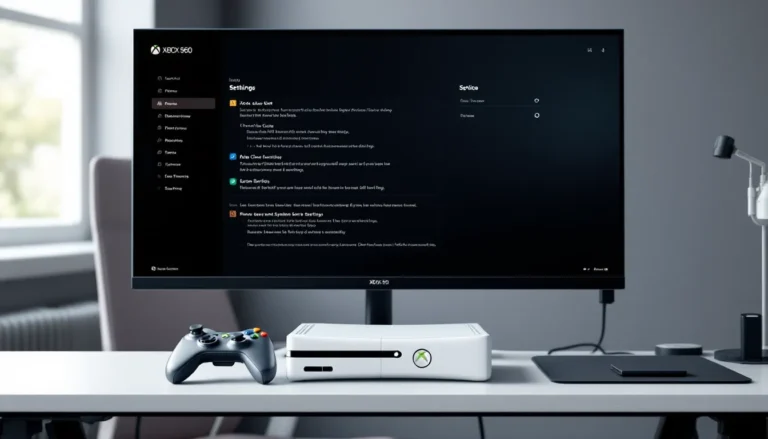
Accessing the System Settings Menu
Power on your Xbox 360 and ensure you’re on the main dashboard. Press the Guide button (the glowing Xbox logo in the center of your controller) to open the guide overlay.
Navigate to the far right tab, Settings, using the right bumper or analog stick. Select System Settings from the menu. You’ll enter a screen displaying various console configuration options.
If your console is having trouble reaching the dashboard due to errors, you might need to boot into safe mode or use alternative methods covered later in this guide.
Navigating to Storage and Memory Options
Within System Settings, scroll down and select Storage. This displays all connected storage devices, typically your hard drive, and potentially USB devices or memory units if you have any plugged in.
Highlight your Hard Drive (it’ll show the storage capacity, like 120GB, 250GB, or 320GB depending on your model). Press Y on your controller to bring up device options.
You’ll see several choices including Transfer Content, Clear System Cache, and Format. Don’t select Format yet, there’s a specific sequence to follow.
Performing the Hard Drive Format
Select Format from the device options menu. The console will display a warning that formatting will delete all content on the hard drive, including games, profiles, and saved games. This is the point of no return for data stored on the drive.
Confirm the format operation when prompted. The process typically takes 1-3 minutes depending on drive size and how much data was stored. Many users dealing with Xbox 360 won’t read disc issues find that formatting the drive alongside other troubleshooting helps resolve persistent problems.
The console will display a progress indicator. Don’t power off the console during this process, interrupting a format can corrupt the hard drive and make it unrecognizable.
Once complete, the drive will be empty and ready to use as if it were brand new.
Resetting System Settings to Factory Defaults
Formatting the hard drive doesn’t reset system-level settings stored in the console’s internal memory. To complete a full factory reset, you need to restore system defaults separately.
From the System Settings menu, select Console Settings. Scroll down to System Info, then press Y, X, Y, X, Left Bumper, Right Bumper, Left Bumper, Right Bumper in sequence. This opens a hidden factory reset menu.
Alternatively, select Restore Factory Defaults if your console model displays it directly in Console Settings (some dashboard versions made this more accessible).
Confirm the reset when prompted. The console will restart and return to the initial setup screen you saw when first unboxing it. All video settings, network configurations, and preferences revert to default.
Alternative Reset Methods for Different Xbox 360 Models
Not all Xbox 360s are created equal, and model variations affect the reset process slightly.
Resetting Xbox 360 E and S Models
The Xbox 360 E (2013) and Xbox 360 S (2010) feature integrated hard drives and slightly different dashboard layouts. The reset process remains fundamentally the same, but accessing storage can differ.
On S and E models with internal drives, the storage device appears as Hard Drive in the storage menu. Some E models with 4GB internal flash storage don’t have removable drives, you’ll see Internal Storage instead.
For 4GB E models without hard drives, there’s less to reset. You can still restore factory defaults through Console Settings, but there’s no separate drive to format. Game saves and profiles would be stored on USB devices or cloud storage exclusively.
These models also support larger USB drives (up to 2TB) formatted as Xbox 360 storage, which you should format separately if used.
Factory Reset for Original Xbox 360 Consoles
Original Xbox 360 models (2005-2010, identifiable by their white or black cases and detachable faceplates) use removable hard drives that attach to the top or side of the console. Experts at How-To Geek have documented that these older models remain functional for many users even though their age.
You can physically remove the hard drive before resetting by pressing the release button and sliding it out. This prevents accidental formatting if you want to preserve the drive’s contents while resetting console settings.
When formatting the drive on original models, the process is identical, navigate to Storage, select the drive, press Y, and choose Format.
Some original Xbox 360s suffered from the infamous Red Ring of Death (RROD) hardware failure. If your console displays hardware error codes, a factory reset won’t fix physical component failures.
Arcade and Core Model Considerations
Xbox 360 Arcade and Core models shipped without hard drives. These budget versions included either no storage or small 256MB/512MB memory units.
Without a hard drive, there’s significantly less to reset. You can still restore factory defaults for system settings, but there’s no built-in storage to format.
If you later added an aftermarket hard drive or use USB storage, format those devices separately through the Storage menu. Memory units can be formatted the same way as hard drives, select them in Storage, press Y, and choose Format.
Troubleshooting Common Factory Reset Problems
Factory resets don’t always go smoothly, especially on consoles that have been in service for 15+ years.
Reset Process Won’t Complete or Freezes
If the format operation hangs at a specific percentage or the console freezes during reset, wait at least 15 minutes before assuming failure. Older hard drives with bad sectors can cause delays.
If the process genuinely stalls, power cycle the console by holding the power button for 10 seconds until it fully shuts down. Restart and attempt the format again.
Persistent freezing during format suggests hard drive failure. Try removing and reseating the drive (if detachable), checking for visible damage to the drive connectors. If the drive is physically failing, you may need a replacement.
Error Codes and Warning Messages
Common errors during factory reset include:
- E68 Error: Hard drive communication failure. Remove and reseat the drive, clean the contacts with isopropyl alcohol, and reconnect.
- Can’t Format This Device: The drive may be locked or corrupted beyond the console’s ability to format. PC-based formatting tools sometimes work where the console fails.
- Storage Device Needs Maintenance: The drive has filesystem corruption. Try clearing the system cache first (Storage > Hard Drive > Y > Clear System Cache), then attempt formatting again.
If you encounter an error code not listed here, cross-reference it with Microsoft’s legacy support documentation or community forums, the Xbox 360’s support lifecycle has ended, but community resources remain active.
Hard Drive Not Detected After Reset
If your hard drive disappears from the Storage menu after a reset attempt, power down completely and remove the drive. Inspect the connector pins for damage or debris.
Reattach the drive firmly, it should click into place on original models or slide securely into the bay on S/E models. According to coverage from Windows Central, connection issues account for a significant portion of storage problems on aging hardware.
If the drive still isn’t recognized, test it in a different Xbox 360 if possible. Drives can fail independently of reset attempts, and a non-detected drive might be experiencing hardware failure unrelated to the reset.
For S and E models with integrated drives, non-detection after reset usually indicates serious hardware problems requiring professional repair or replacement.
Setting Up Your Xbox 360 After a Factory Reset
With your console reset, you’ll need to configure it again from scratch.
Initial Console Configuration
The console will boot to the initial setup screen. Select your language, then choose your video output settings. If you’re using HDMI, select HDMI and confirm the resolution (720p or 1080p depending on your TV).
For component or composite cables, choose the appropriate setting and verify the output displays correctly. The console will ask you to confirm within 15 seconds or it’ll revert to default settings.
Set your time zone and any parental controls you want to apply. You can skip network setup initially if you prefer to configure it later.
Reconnecting to Xbox Live
Navigate to Settings > System > Network Settings to configure your network connection. Choose Wired Network if using Ethernet or Wireless Network for Wi-Fi.
For wireless, select your network from the list, enter the password, and test the connection. The console will verify it can reach Xbox Live servers.
Even though Xbox Live for Xbox 360 has transitioned into legacy support status in 2026, basic account services, game downloads, and friend lists remain functional for existing users.
Once connected, go to the profile sign-in screen. Select Download Profile, enter your Windows Live ID (email) and password. The console will retrieve your profile from Microsoft’s servers, restoring your gamertag, friends list, and achievement history.
Restoring Your Backed-Up Data
Connect any USB drives or memory units containing your backed-up game saves. Navigate to Settings > System > Storage, select the USB device, then Games and Apps.
Highlight the game saves you want to restore, press Y, and select Move or Copy to transfer them to your hard drive. Some games require saves to be on the hard drive to function properly.
If you used cloud storage with Xbox Live Gold, your saves should automatically sync when you launch supported games while signed into your profile. Check each game’s storage settings to verify cloud sync is enabled.
Re-download any purchased games or DLC through Settings > Account > Download History. This lists everything tied to your Xbox Live account, allowing you to queue downloads without repurchasing.
Protecting Your Privacy: Ensuring Data Is Fully Erased
If you’re selling or disposing of the console, take extra steps to verify your data is truly gone.
Verifying Account Removal
After the factory reset, navigate to Settings > System > Storage and verify no profiles appear on the hard drive. Check both the hard drive and any internal storage devices.
Try signing into Xbox Live, if no accounts are cached on the console, you should only see the option to Download Profile or Create New Profile, not existing gamertags ready to sign in.
Check the My Xbox section of the dashboard. It should be empty or show generic promotional content rather than personalized recommendations based on your gaming history.
Additional Steps for Maximum Security
For paranoid-level security (justified if you’ve stored sensitive payment information), perform a second format of the hard drive after the initial reset. This overwrites any residual data that might theoretically be recoverable with specialized tools.
Physically remove the hard drive if you’re selling just the console and keeping the drive for another Xbox 360 or as backup storage. Replacement drives are affordable, and keeping your original drive eliminates any possibility of data recovery.
If you’re recycling or disposing of the console entirely, consider physically destroying the hard drive, drill through the platters or use a degausser if you’re handling enterprise-level security.
For most users selling to typical buyers, a standard factory reset and format provides adequate data removal. The average purchaser isn’t equipped with forensic data recovery tools, and the reset process effectively removes all accessible personal information.
Conclusion
Factory resetting an Xbox 360 in 2026 remains straightforward even though Microsoft’s shift toward current-generation hardware. The process clears system errors, prepares consoles for new owners, and gives your aging hardware a fresh start. Just remember to back up your saves, remove your account properly, and follow the specific steps for your console model, whether you’re running an original white box from 2005 or a sleeker E model from the console’s final years.
If you’re migrating to current hardware, the reset process for newer consoles follows similar principles but with updated menus, check out guides like how to factory reset PlayStation 5 to see how the concept translates to modern systems. Your Xbox 360 might be a legacy console, but proper reset procedures ensure it serves its next chapter, or retires gracefully, without leaving your digital footprint behind.